How to Compress a Video for Instagram Without Losing Quality

- Primary Signal: How to Compress a Video for Instagram Without Losing Quality
- Overview: Instagram recompresses everything you upload, so your export settings matter more than your file size. Learn the resolution, bitrate and format settings that keep your reels sharp....
- Verification: Analyzed and compiled by ViralBuzz 168 editorial monitoring desk.
If your Instagram videos look soft or blurry after upload, the problem usually is not your camera; it is the double compression. Instagram re-encodes every upload, so a video that is already heavily compressed gets squeezed twice and loses detail. The fix is exporting with settings that survive Instagram's processing: the right resolution, a sensible bitrate, and a format the platform handles cleanly.
Instagram displays reels at a maximum of 1080 by 1920, so uploading 4K only gives the platform more data to throw away, and it can introduce softness during downscaling. Export at 1080p with a frame rate matching your source, usually 30fps, and you keep the file smaller and the result sharper. For feed videos, 1080p wide is the same sweet spot.
Bitrate is where most quality is won or lost. For 1080p video, a bitrate of 10 to 12 Mbps holds detail well without creating a giant file. Anything below 5 Mbps will show blocky artefacts in busy scenes, and anything above 20 Mbps is wasted because Instagram will crush it anyway. In your editor, choose H.264, high profile, and a variable bitrate capped in that range.
Reels can be up to 4GB, but smaller files upload faster and are less likely to stall or fail on mobile data. A one-minute 1080p reel at 12 Mbps lands around 90MB, which is comfortable. If your file is much larger, trim the bitrate slightly or shorten the clip rather than letting Instagram's uploader mangle it. Always upload over Wi-Fi when possible.
CapCut, DaVinci Resolve and HandBrake all let you set resolution, codec and bitrate precisely, and all have free versions. In HandBrake, pick the H.264 preset, set the resolution limit to 1080p, and use a constant quality value around RF 20 for a good balance. Avoid apps that promise one-tap compression without showing settings; they usually over-compress.
Frame rate matters more than most creators expect. If you filmed at 60 frames per second but export at 30, motion will look slightly different, and if you mix frame rates in one project, you can get judder. Keep your export frame rate matched to your source footage unless you are deliberately creating slow motion. Audio deserves the same care: export with AAC audio at 128 to 192 kbps, because muddy or overly compressed audio makes even sharp video feel cheap. Aspect ratio is equally important: use 9:16 vertical for reels, 1:1 or 4:5 for feed posts, and avoid letterboxing a vertical video inside a square frame, which wastes screen space and hurts watch time.
In CapCut, set resolution to 1080p, frame rate to match your clip, code rate to recommended or high, and format to MP4 before exporting. In DaVinci Resolve, choose the H.264 codec on the Deliver page, set resolution to 1920 by 1080, set quality to restrict to around 12000 kbps, and keep the frame rate at 30 unless your project demands otherwise. In HandBrake, select the H.264 preset, limit resolution to 1080p, set the video encoder to H.264, and use a constant quality value near RF 20 for a clean result. In every tool, preview the export on your phone before uploading, because a file that looks fine on a large monitor can reveal softness on a small screen.
The most common mistake is uploading a video that was already compressed by a messaging app: sending a clip through a chat app and then uploading that copy means Instagram compresses an already damaged file. Another mistake is adding heavy text, stickers and filters inside Instagram after uploading a high-quality file, which forces another round of processing. Cropping a horizontal video into vertical inside Instagram also throws away resolution. Avoid re-uploading the same reel multiple times to fix small errors, because each upload is reprocessed. Finally, check your Instagram upload settings and enable high-quality uploads over Wi-Fi, so the app does not quietly reduce quality to save data.
Sharp Instagram video is a settings problem, not a camera problem. Export at 1080p, H.264, 10 to 12 Mbps, and let Instagram's own compression work on a file that can handle it.
📖 Continue Reading the Full Story
Continue reading this article on ViralBuzz 168.
⚡ Access Full Content NowMore from ViralBuzz 168
![Las 15 mayores transformaciones a medida que la cirugía plástica y la pérdida de peso dominan los premios Emmy de 2026 [Datos confirmados exactos para 2026.]](https://static.boredpanda.com/blog/wp-content/uploads/2026/09/cover_image_720_6aa936b3d15f0.jpg)
 ⚡ CyberTech 568
How to Write Better Prompts for AI Image Generation: A Beginner's Guide
Good AI images start with specific prompts. Learn to describe subject, style, lighting and composition so the ...
 🎮 GameVault 668
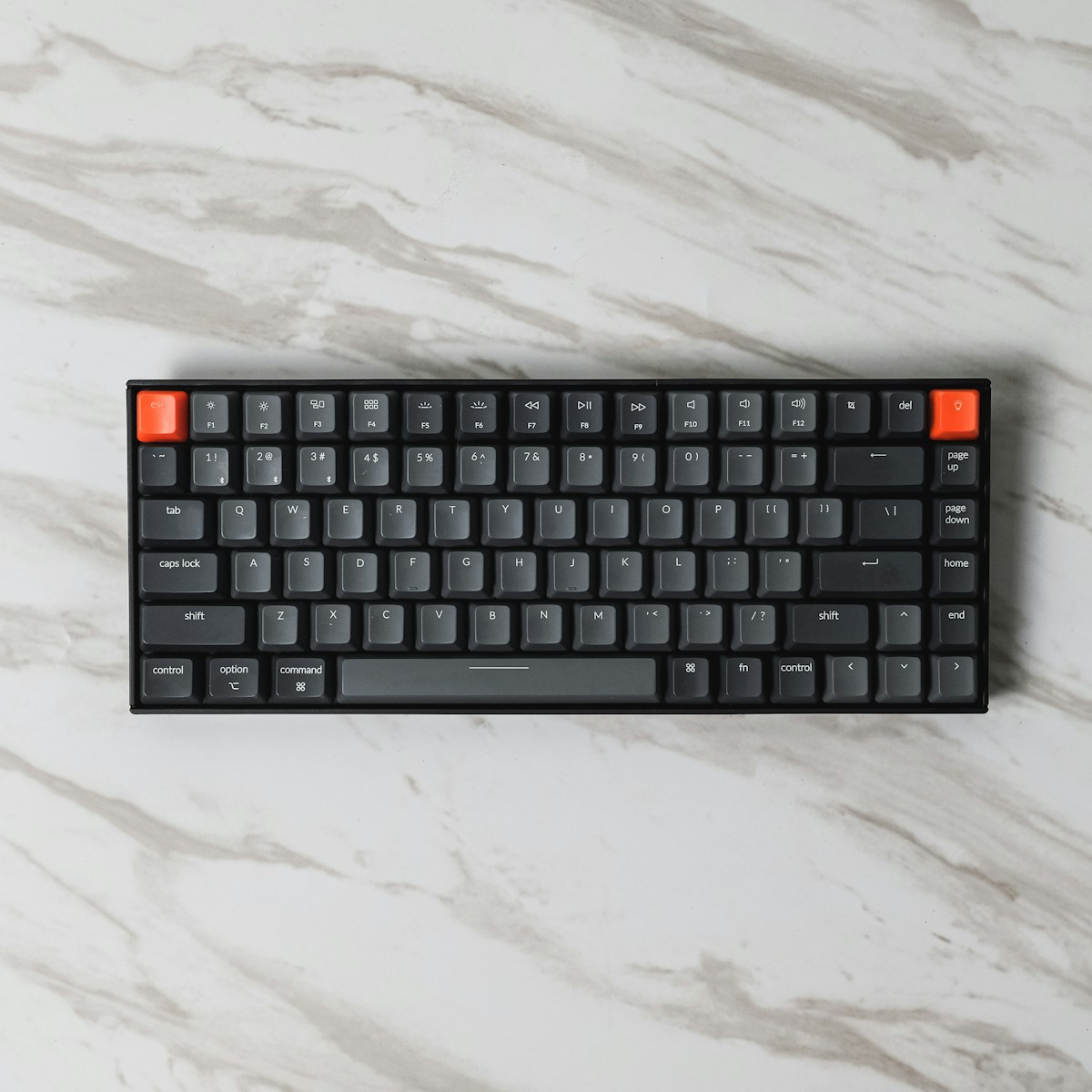
Best Budget Mechanical Keyboards Under $50 for Gaming in 2026
You no longer need to spend a fortune for a solid mechanical gaming keyboard. These sub-$50 picks deliver hot-...
 💎 LuxeLiving 768
How to Check DNS Records of a Domain: A Beginner's Guide
Checking a domain's DNS records takes under a minute once you know the tools. This guide covers online lookup ...
 🏆 2026 Football Online
How VAR and Semi-Automated Offside Will Work at World Cup 2026
World Cup 2026 will use video review and semi-automated offside technology. Here is what VAR can and cannot ch...